If you guys have a Gmail Account and you would like to read and send emails from your website’s web host server using cPanel, here’s a way to do it. Note that to complete this particular guide, you’ll need access to cPanel in your web host server. You can skip to this part if you are confident that your mail server is already set up correctly and you have all the correct configurations such as incoming & outgoing mail server, protocols & port numbers, and the login credentials.
Reading your web hosting server’s e-mails from your Gmail Client/Account facilitates the process of managing your custom e-mail address.
Before we commence, I assume that you are familiar with DNS records, don’t worry all you need to do in this one is make sure that you have an MX record set up in your DNS records.
To do that, go to your DNS provider, e.g. Bluehost, GoDaddy, etc., and either set it up by following an MX record guide like this one, or kindly ask support to set it up for you. They’re usually very helpful!
For this particular guide, your web hosting server needs to be running cPanel. If you’re familiar with cPanel, then you already know what that looks like; otherwise, take a look at this screenshot below: this is the dashboard for cPanel
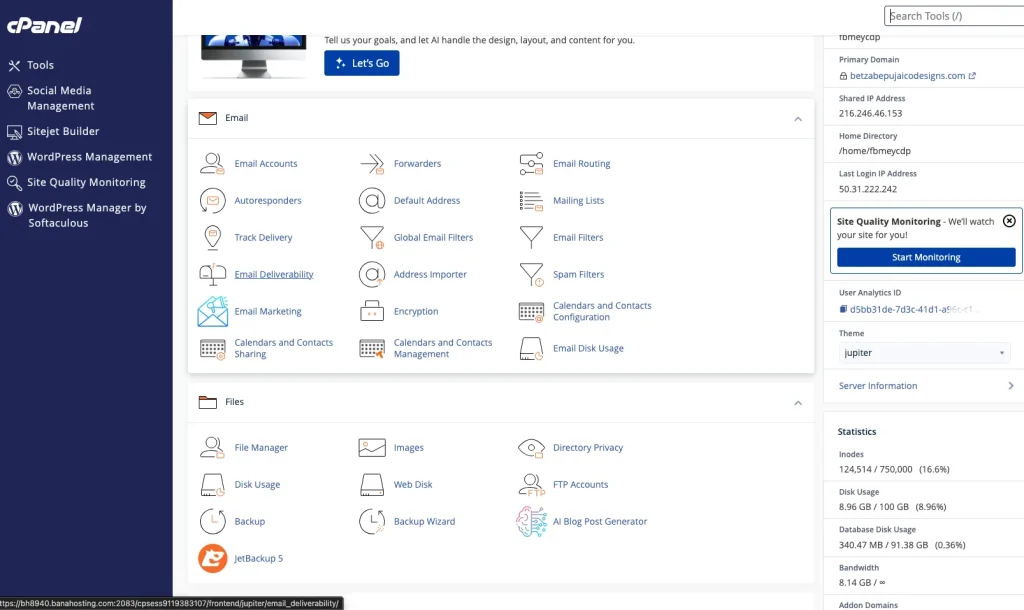
Your cPanel dashboard might differ a little bit, but that’s okay. We sometimes get different versions and themes.
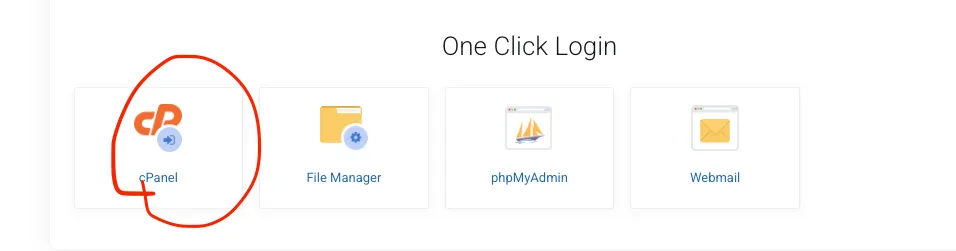
If you don’t know where to find your cPanel login, then do the following:
- Go to your web hosting company’s login page
- Login with your web account
- Go to the hosting service you want to set up the Gmail e-mail routing
- Then look for the cPanel Logo somewhere in your hosting
For example while using BanaHosting, I had to scroll all the way down and look for this logo:
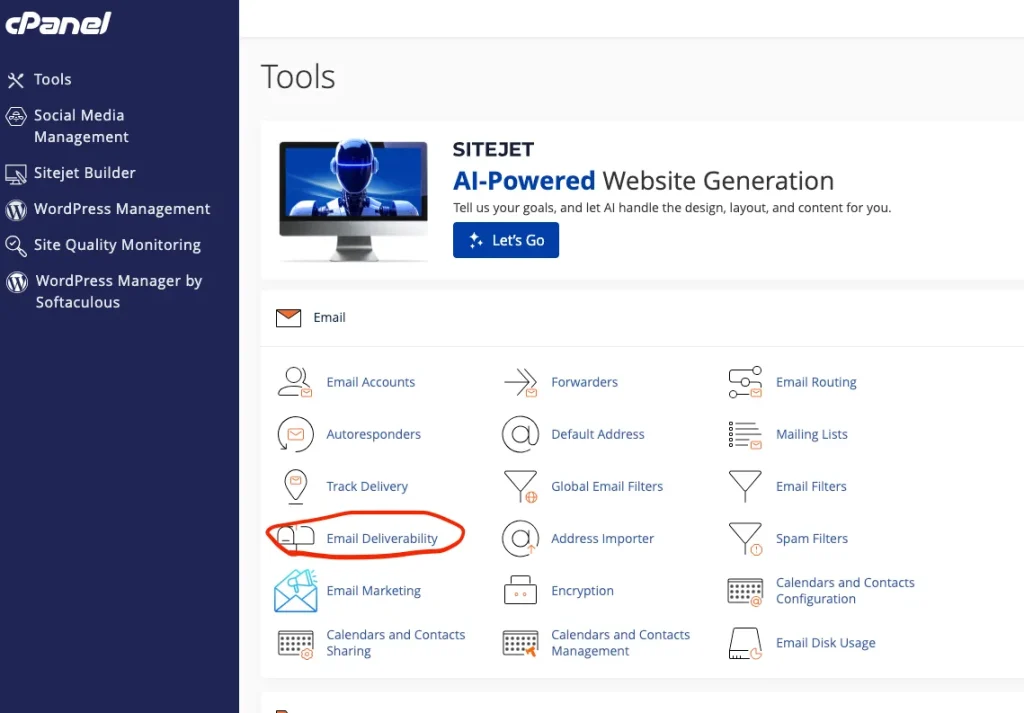
After that is done and you’re in your cPanel dashboard, you will click on Email Deliverability:
From there, you will be able to accomplish a couple of things:
- Repair
- Manage
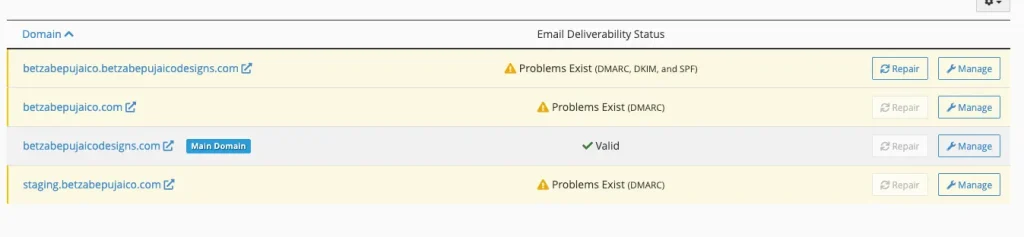
Note that we have a couple of domains with issues here. Some can be repaired but others require manual action. The ones that require manual action most likely indicate that you don’t have an MX record set up. The ones which you can, you should go ahead and repair them.
Repairing these domains deals with 3 common issues and requirements for reading/receiving e-mail from an external client:
Please feel free to read about those by clicking on them, otherwise the important takeaway from these three is that they are also DNS records which handle authentication and anti-spam mechanisms.
Once your records for the domain you’ll be send e-mail from are repaired and valid, you can go ahead and create an e-mail account by using the cPanel Dashboard:
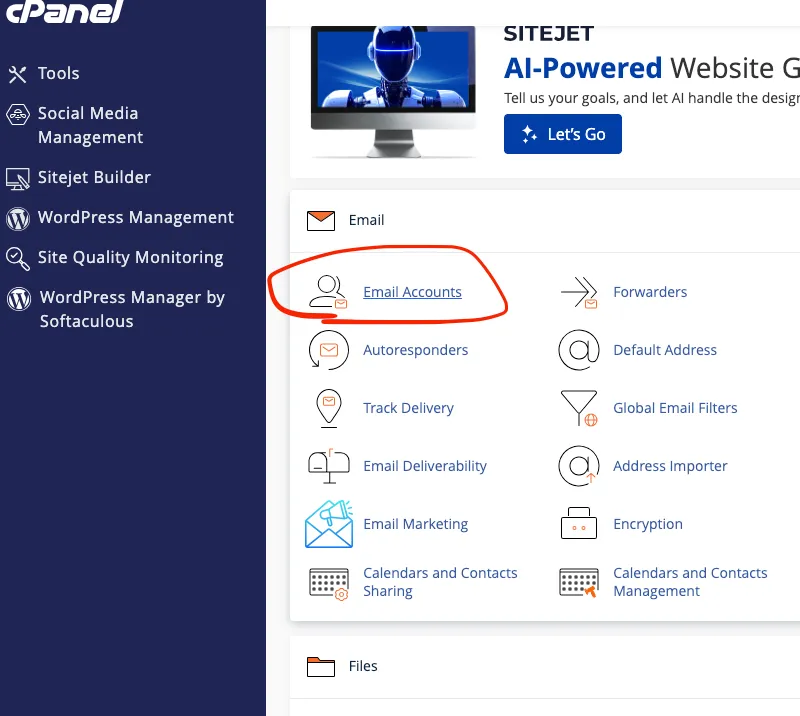
Make note of your password and store it in a secure vault.
Now that you have your account, you can move on to the e-mail account itself and clicking “Configure Client” which will give you multiple options for setting up your Gmail e-mail client to read and receive e-mail from your webhosting account.
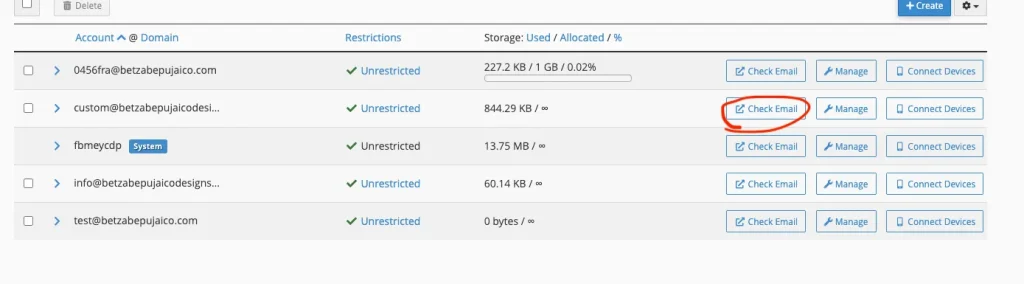
To do that, click on check-email and then scroll down to “Other Webmail Features” > “Configure Mail Client”
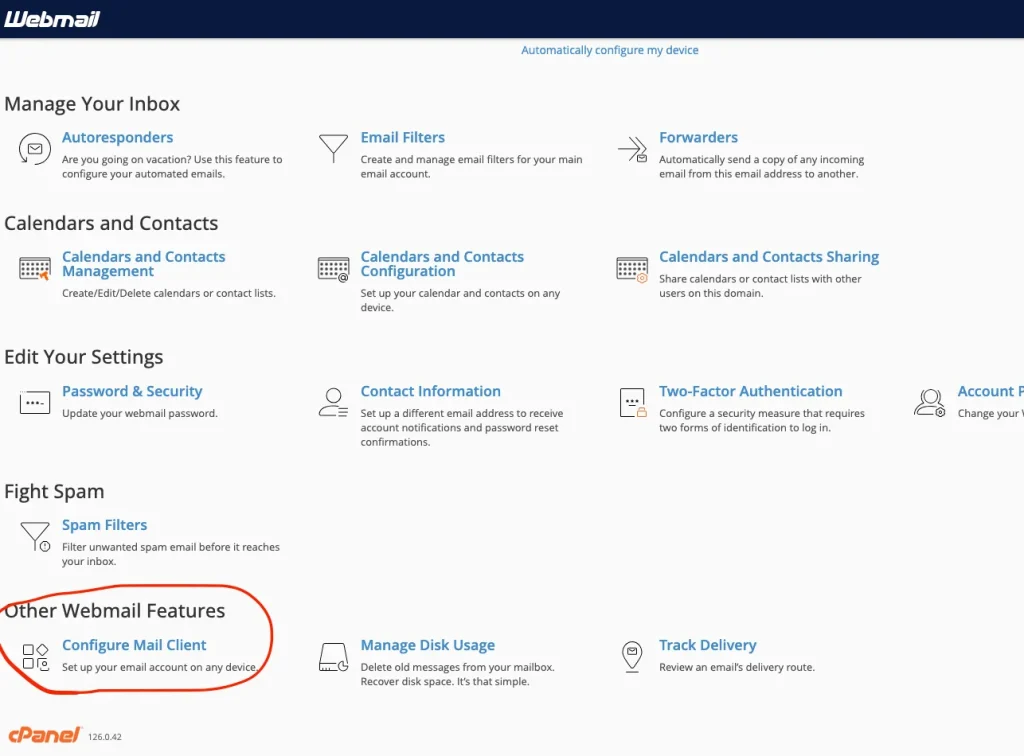
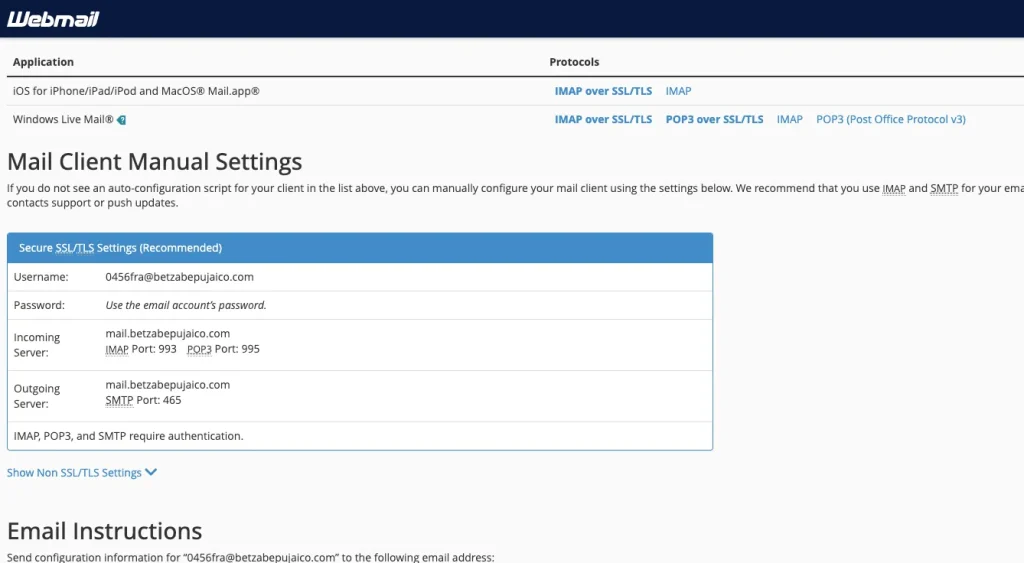
In this next screen, you will see your credentials which you will need for configuring your Gmail Client to read your own webserver’s custom e-mails:
Setting Up Gmail To read and send your webhosting E-mails
In this section, we’ll open our Gmail Account and navigate to the settings Icon > and then tap in all settings.

After your tap in all settings, go to accounts and imports, where you will be able to see the “Send email as” and the “Check mail from other accounts” options. Click on “check mail from other accounts.”
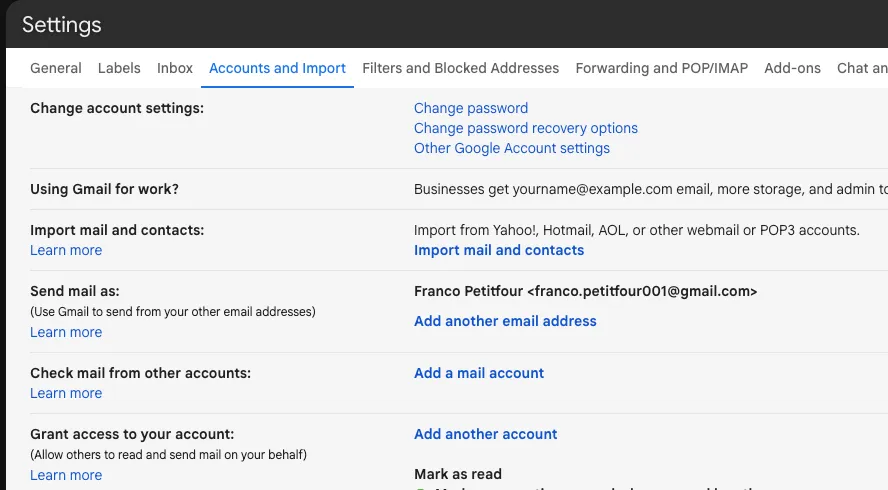
This will open up this little yellow window which you will use to fill up settings according the credentials screen we saw earlier from cPanel.
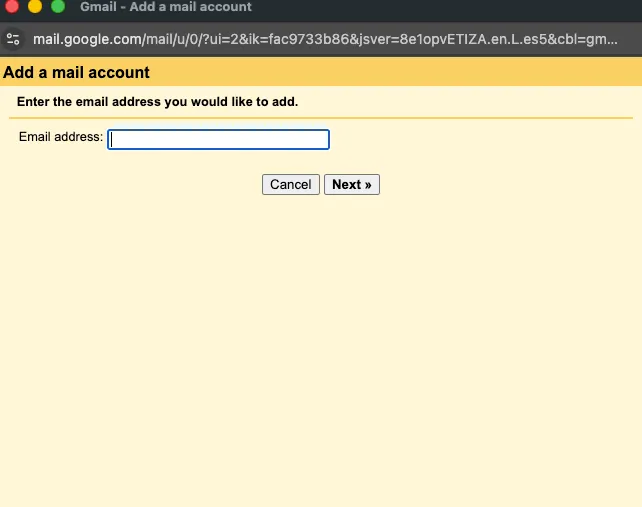
Now you’ll input those credentials and you’ll be able to check the confirmation e-mail that you will receive from google prompting you to confirm that you’re going to send/receive e-mail from that external client. To confirm this e-mail, you’ll have to open cPanel > Email Accounts > Read Email
And then tap on the open button while in Webmail. This will take you to the mail client that cPanel uses and there you should have received an e-mail allowing you to confirm your changes.
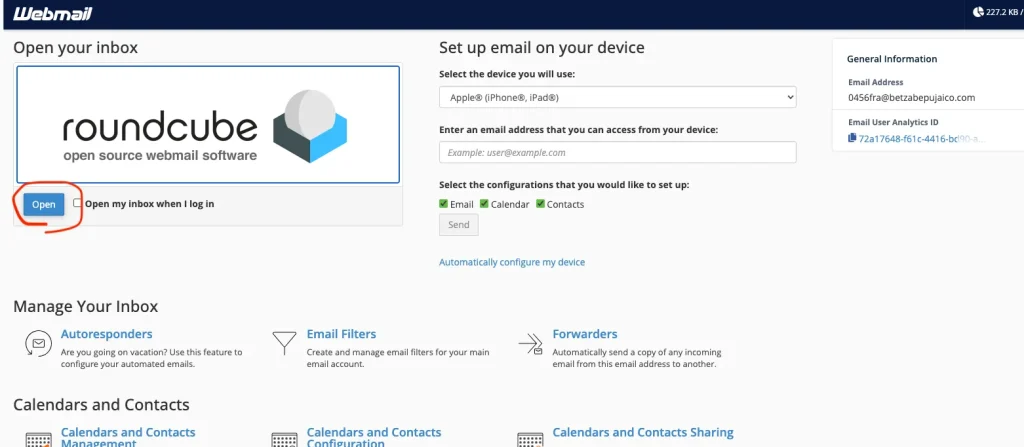
After you’re done confirming your changes, you’ll be able to retrieve e-mail and send e-mail from your server in your gmail client!
You should watch the video above as it’s far more descriptive. You can also watch it here.

Hello. My name is Franco. I like technology. Here I will write about SEO projects and research that I either write or come across. Enjoy.